
How to start using Codex.
Hey there! This week, we are trying something new: we recorded an in-depth video explaining what OpenAI's Codex is, how to set it up, and what to try first. We walk you through every step and show you practical examples.
This is a tool that we have mentioned in past newsletters!
Many know ChatGPT as the place where they ask questions. But Codex is where real work happens: it can use your existing apps (Drive, Slack, etc.), think through complex problems, and help with almost any browser or desktop task.
Watch our 12-minute walkthrough or read the full AI Basics page: Set up Codex and start using it.
- 01Set up Codex and try one safe first task. We walk you through setup, connecting plugins, and running a low-risk browser task.AI Basics
- 02Also this week: two quick notes. Security is becoming more important than ever, plus one Chinese model-release signal worth knowing.Quick hits
How to download Codex and set up the starter plugins.
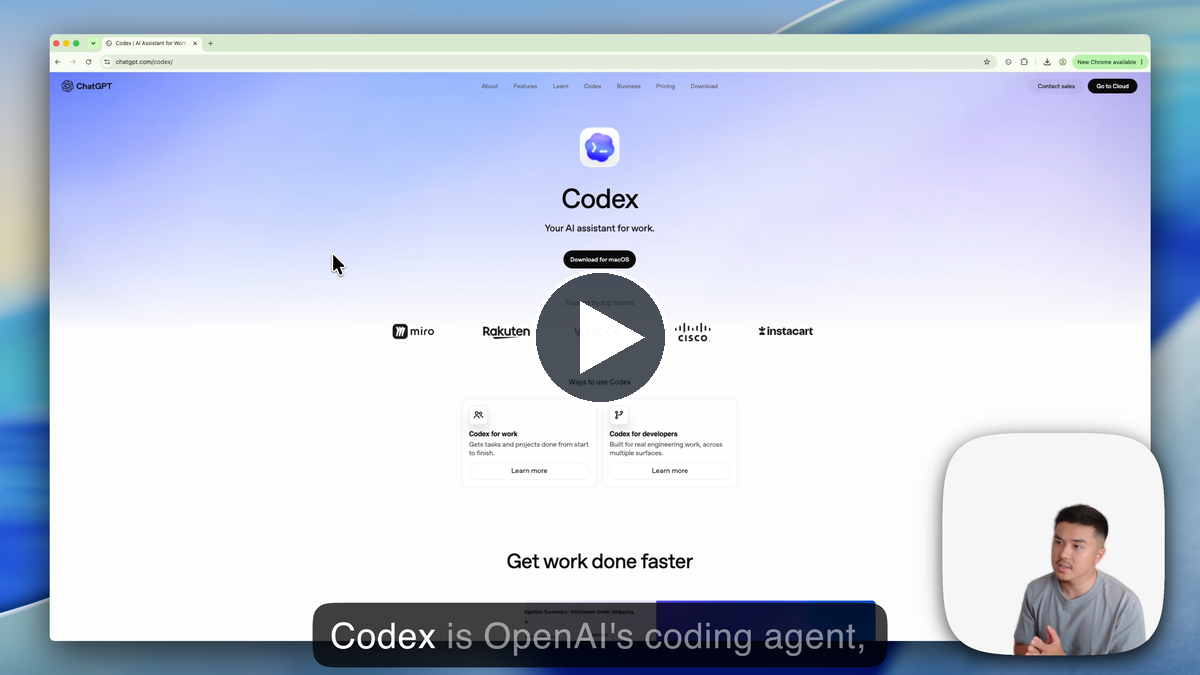
The simplest way to understand Codex is this: ChatGPT is where you ask questions. Codex is where you give AI real work to do. Below we show you what we mean.
The full AI Basics page has the walkthrough video, screenshots, detailed instructions, and prompts: Set up Codex and start using it.
Here is the high-level version:
- Download: Go to chatgpt.com/codex, download Codex for Mac/Windows, and sign in with ChatGPT.
- Set up the basics: Set Data Controls in ChatGPT's Settings to no training, then enable the following plugins in Codex: Computer Use, Chrome/browser, and Google Drive (optional).
- Write your prompt: Use a task you can monitor, like creating a simple spreadsheet (copy our prompt below).
- Keep approvals on / ask for a plan: When you first get started, review anything involving email, files, purchases, account changes, or browser actions. Also asking Codex for a plan before it begins work is really helpful.
- Note: Codex is included on Free with usage limits. Limits and availability vary by plan.
Create a finance budget in Google Sheets for me, using Chrome:
[@chrome](plugin://chrome@openai-bundled) Please open Google Drive. It should already be signed in.

Create a simple budget spreadsheet I can use for tracking my finances.
Play a song for me in Spotify:
[@Computer](plugin://computer-use@openai-bundled) Please open Spotify and play the song "Over the Rainbow."
Bonus: here is what a more advanced Codex task can look like. This is closer to how we use Codex once the basics are connected.
[@chrome](plugin://chrome@openai-bundled) Use the Chrome plugin in Codex. I need help preparing a draft invoice in Zoho for one of my clients. Do not send the invoice, email the client, charge a card, or change payment settings.

Before you start, give me a short plan and wait for my approval.

Use the Notion plugin to find the client/customer profile for [CLIENT OR PROJECT], including the legal name, billing address, primary contact, email, billing notes, and any relevant service details. If the Notion record is missing something important, stop and ask me before continuing.

After I approve the plan, open Zoho in Chrome and:
1. Create or update the client/customer profile.
2. Create the primary contact with the correct billing address.
3. Create a draft invoice.
4. Add service items for IT tech support using the invoice details below.
5. Double-check the client details, billing address, terms, services, and totals.
6. Save the invoice as a draft.
7. Ping me when you're done so I can review and send it myself.

Invoice details:
- Service: IT tech support
- Work performed: [DESCRIPTION]
- Amount or rate: [AMOUNT OR RATE]
- Payment terms: [PAYMENT TERMS]
- Service date or invoice period: [DATE OR PERIOD]
- •AI-built apps need a security check. If you use AI to build a site, form, workflow, internal tool, or even run your company, ask it to check for exposed passwords, private data, weak permissions, and risky sharing before anyone else uses it. These models are getting better at finding flaws, so use them for defense too.
- •Open models are getting more capable. You do not need to chase every model release, but GLM-5.2 is another sign that Chinese AI labs are pushing capable open models forward. Expect intelligence to keep getting cheaper, faster, and more accessible.
See you next week,

Ky Tomita, The Playbooks AI