Set up Codex and start using it.
Download Codex, review your data controls, enable the starter plugins, and run one safe browser task before connecting more apps.
Overview
Most people know ChatGPT as the place where they ask questions, write drafts, and think through ideas. Codex is different. It is an OpenAI work app where AI can use tools, move through steps, and help with tasks across your computer, browser, and connected apps.
This AI Basics walkthrough follows the exact beginner setup from the video: download Codex, review your data controls, enable the small starter plugin set, and run one low-risk task you can watch and inspect before connecting more of your work.
What you need
- A ChatGPT account. Codex is included on Free with usage limits. Limits and availability vary by plan.
- The Codex desktop app from chatgpt.com/codex.
- The Computer Use, Chrome/browser, and Google Drive plugins enabled inside Codex for this walkthrough.
Instructions
Open the Codex download page
Go to chatgpt.com/codex in your browser.Download and sign in
Use the download button on the Codex page, install the desktop app, and open Codex.
Sign in with ChatGPT. Use the same ChatGPT account you normally use, because Codex access and usage limits are tied to that account. If you are not signed in yet, sign in first and then return to the Codex page.
On macOS or Windows, approve the normal operating-system prompts required to open the app so Codex can finish setup.
Review your data controls first
Before you connect apps or hand Codex real work, open ChatGPT Settings and review Data Controls.
It's important to configure this preference before you paste files, client context, or private business data into a working agent.
Open Plugins in Codex
In Codex, open the Plugins area. This is where you connect the tools Codex can use for a task. Start with only the plugins used in this walkthrough so your first run is easy to understand: Computer Use, Chrome/browser, and Google Drive.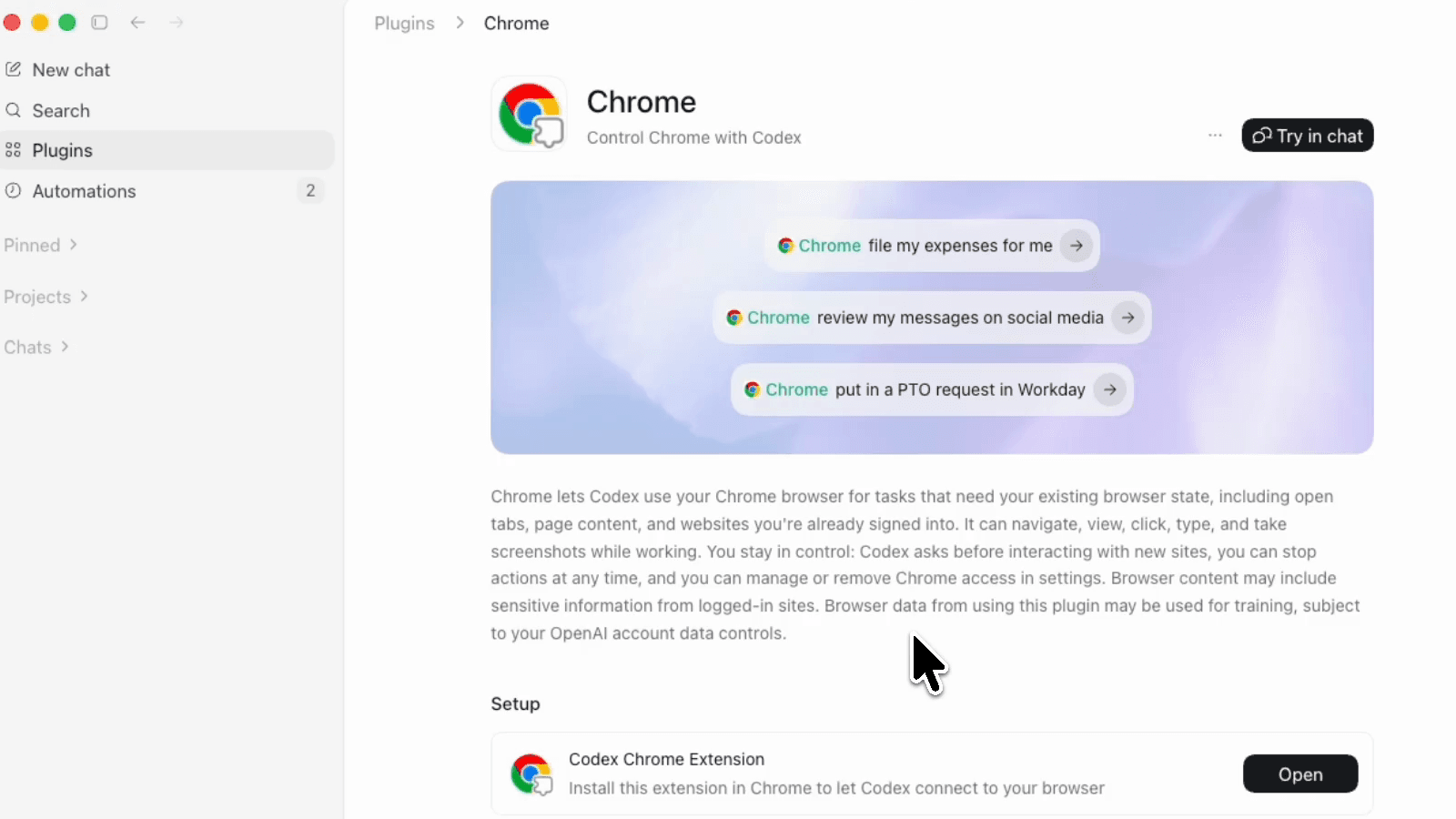
Use the Plugins area to add the small starter set. You can connect more apps later, but the first setup should stay narrow. Enable Computer Use
Enable Computer Use so Codex can operate normal desktop apps for a task you request. If Codex asks for additional permission in your system preferences or settings then select Allow.Enable Chrome or the browser plugin
Enable the Chrome browser plugin so Codex can work through a signed-in browser session. In the video, this is the plugin we use for accessing Drive and Sheets in Chrome. If Codex asks you to install or approve a browser extension, follow the prompt and keep the permissions limited to what the task needs.Connect Google Drive (optional)
Enable Google Drive if you want Codex to find or create Drive files directly. If your workspace blocks the Google Drive plugin, you can still practice the same workflow with the Chrome plugin because Codex can use your signed-in browser session.Run the budget spreadsheet demo
Start a new Codex chat and paste the Chrome starter prompt below. Codex should use Chrome, open Google Drive, and create a simple budget spreadsheet. Watch the steps as they happen, approve actions when Codex asks, and keep the task simple enough that you can tell whether the result is right.[@chrome](plugin://chrome@openai-bundled) Please open Google Drive. It should already be signed in. Create a simple budget spreadsheet I can use for tracking my finances.
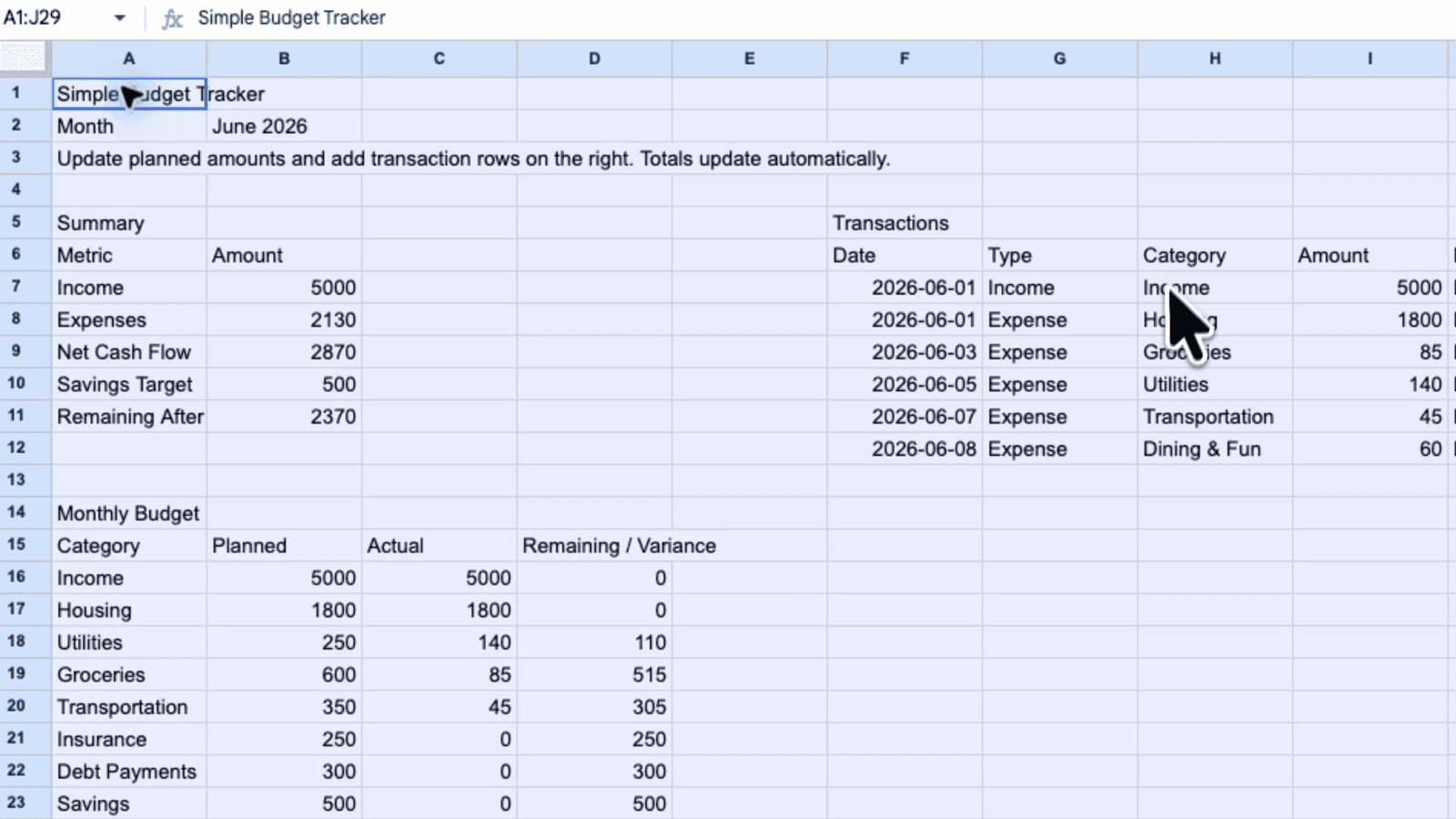
A simple spreadsheet is a good first task because the output is visible, editable, and easy to inspect before you trust Codex with anything more important. Inspect the result before moving on
Open the spreadsheet Codex created and check the categories, formatting, and formulas. If something looks off, ask for one small fix while you are still watching the task. The goal of the first run is not to build the perfect budget sheet; it is to learn how Codex plans, asks for approval, uses the browser, and edits a real file.Try one desktop app task
After the browser task works, try the Computer Use prompt below. This gives you a quick feel for the difference between browser automation and desktop-app automation. Keep this first desktop test harmless, then add more connected apps only when you have a clear task for them.[@Computer](plugin://computer-use@openai-bundled) Please open Spotify and play the song "Over the Rainbow."