
Stop treating every task with AI like a brand-new chat.
Hey there! This week I really want to show you a practical starter kit for Claude Projects: what it is, when to use one, and how to actually start.
A normal Claude chat is still great for one-off questions; that is what most people use. A Claude Project, on the other hand, is better when the same topic, files, instructions, or goal will come up more than once. If you keep pasting the same background into Claude, that is a sign the work probably belongs in a Project.
I recorded three pieces for this: set up Claude, what Claude Projects are, and how to use a Project to start a scientific research report. Go in order if you are new to Claude, or jump to the research-report playbook if you want to see what using a Project actually looks like.
- •New to AI: set up Claude and understand Projects. Learn what Projects are, when to use them instead of a normal chat, and how to create one with documents Claude can reuse.
- •Everyday user: use a Project for a research report. Add notes and sample data to one Project, then use Claude to summarize, visualize, and draft the start of a report.
- •Power user: know when to switch from Claude Chat to Claude Cowork. Regular Project Chat is enough for most readers. Cowork is the next step when a Project needs to become a more task-oriented workspace with richer file and folder context.
- •Also this week: new AI models, access, and chips. A few quick AI updates are worth tracking this week: frontier AI model access, AI cost control options, and the hardware race underneath faster AI tools.
Start with the basics: one topic, one Project.
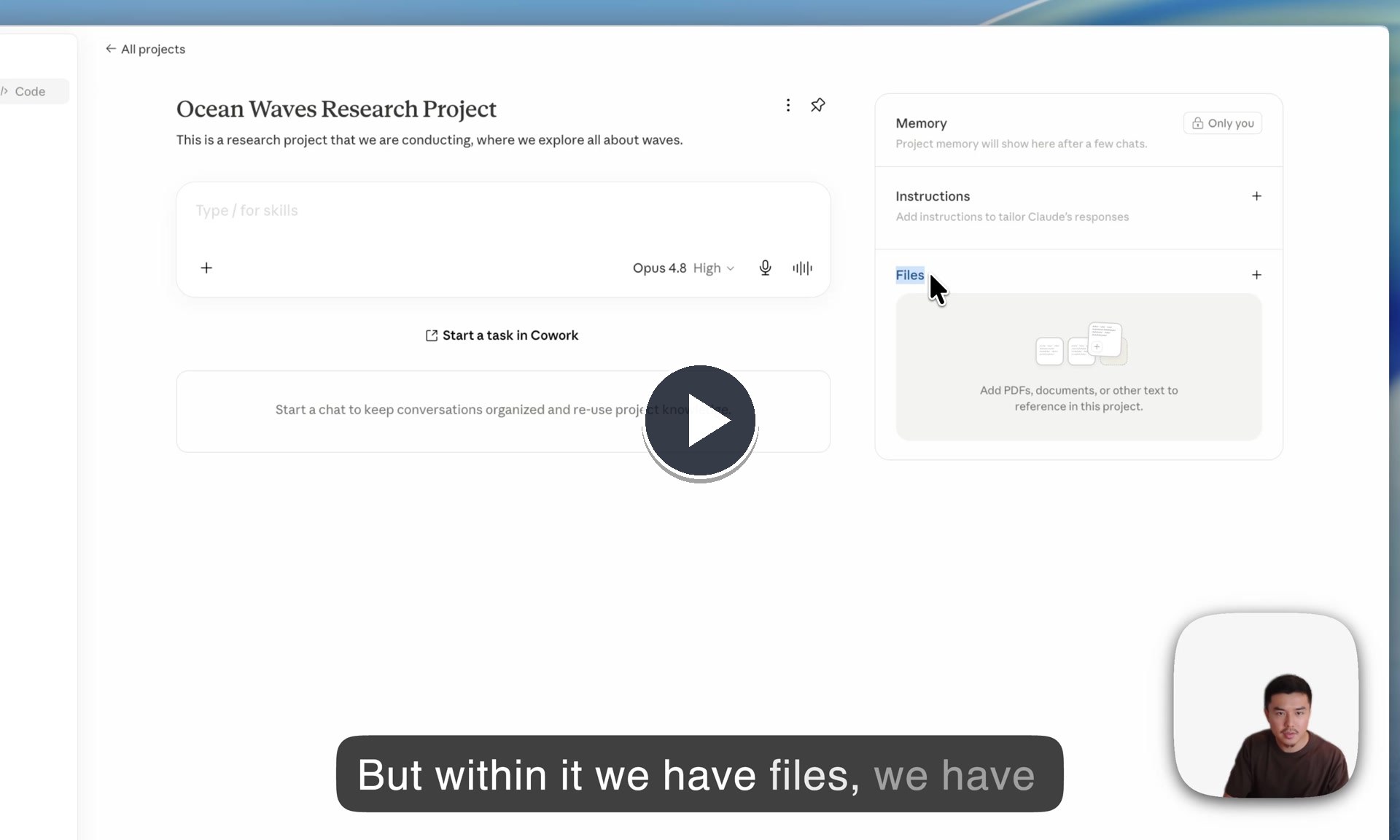
If you have not set up Claude yet, start with the Claude setup video. If Claude is already installed and you know where Projects live, you can start here.
Think of a Claude Project as a reusable workspace for one topic. Instead of opening a blank chat every time, you give Claude the relevant files and instructions once, then keep related conversations inside that Project.
- Use a normal chat when: the question is one-off and you do not need Claude to remember a specific file set or workflow.
- Use a Project when: you keep referencing the same topic, notes, source files, instructions, rubric, audience, or output format.
- Bring the right context: add documents, notes, examples, or files that you want Claude to use repeatedly.
- Keep the instructions simple: tell Claude the goal of the Project, what files to trust, what tone to use, and when it should ask questions instead of guessing.
For the beginner path, the goal is not to build a giant AI workspace. The goal is to understand the difference between a chat and a Project, then make one Project that proves the value of shared context.
Use the Project to start a scientific research report.
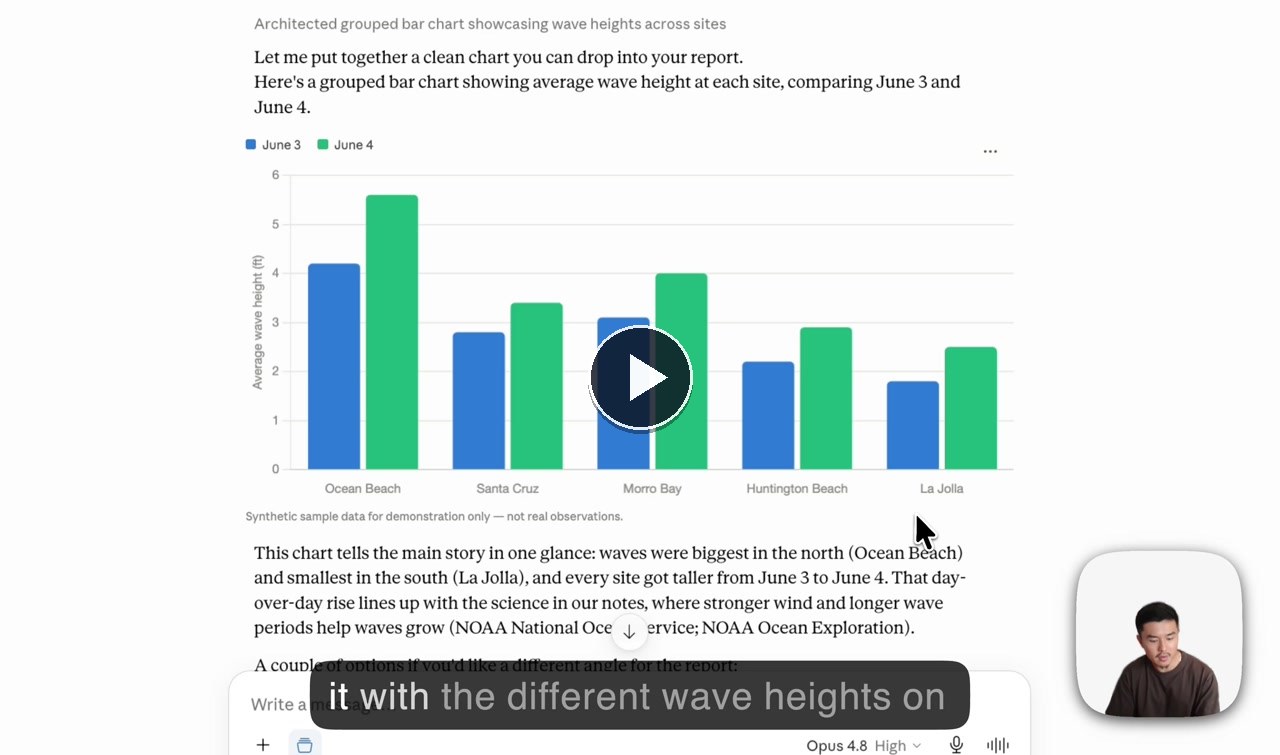
Once you have a basic Project created in Claude, the next step is to use it for actual work. In this demo, we use a beginner-friendly research report about ocean waves to show what that looks like.
The playbook follows the Ocean Waves demo directly and includes the files and Project instructions so you can follow along. After that, the structure is reusable for your own topic: add context, add instructions, check Claude's understanding, then ask for the first useful output.
Here is the simple structure for getting value out of a Project:
- Add the context: upload the files that define the work. In the demo, that is the ocean-wave research packet and a small sample dataset.
- Add Project instructions: tell Claude the goal, audience, source rules, and output style once so future chats start from the same frame.
- Check understanding first: have Claude summarize what files and data it can see before asking for a chart, outline, or draft.
- Create a useful output: ask Claude to turn the files into something you can use, like a report introduction, draft structure, summary, graph, or visual idea.
That is the core playbook: put the research materials, instructions, and starter prompt in one Project so every chat can work from the same source base.
Go further: switch the Project from Chat to Cowork.
For most readers, regular Project Chat in Claude is enough. Upload the right files, add instructions, ask better questions, and keep related chats in one Project.
If you want to take Projects further, then try Cowork. It is the more advanced, plan-dependent lane where a Project can become more task-oriented, especially when you want Claude to work with richer context from real files, folders, and connected workspaces. Claude has help docs for Projects in Cowork and recurring Cowork tasks if you want the official details.
Here are the cases where Cowork starts to make more sense than regular Project Chat:
- Stay in Project Chat when: you are asking questions, summarizing uploaded files, drafting from Project knowledge, or learning the workflow.
- Try Cowork when: the work lives in real folders, local files, connected docs, or a broader project workspace that needs more than uploaded Project knowledge.
- Start review-only: Cowork can access files and do more than regular chat, so begin by asking it to inspect context, explain what it can do, and propose a plan before you approve file changes or bigger tasks.
- Use scheduled tasks later: once the workspace is organized, recurring Cowork tasks can help with check-ins, research updates, or project maintenance.
Using Cowork, inspect the project or folder context you can see and help me understand what work this workspace is ready for.

Do not edit, move, delete, upload, or publish files unless I explicitly approve it.

First, inspect the project context you can see.
Then propose:
1. What files, folders, or connected context seem important
2. The best tasks you can help with from this workspace
3. Any missing files, permissions, or instructions
4. A safe first task you recommend I approve
If your Claude screen looks different from the video, do not worry. The principle is the same: Project Chat is the basic reusable-context workflow; Cowork is the more advanced task/workspace layer.
- •Fable 5 is coming back after a brief suspension. Anthropic says Fable 5 will be available again starting Wednesday, July 1, after export controls on Fable 5 and Mythos 5 were lifted. That matters because it brings a top-tier model back after an 18-day suspension and shows that government review can directly affect which AI tools people can use.
- •OpenAI is previewing GPT-5.6 Sol with limited access. OpenAI says GPT-5.6 Sol, Terra, and Luna are starting in a limited preview before broader availability. It is worth watching because it may be one of the next models people benefit from, but broader access is still moving through review and release gates.
- •Coinbase is lowering AI costs by changing defaults. Brian Armstrong says Coinbase is experimenting with cheaper default models, task-based routing, caching, leaner context, and spend visibility instead of simply capping AI usage. The business takeaway is that AI costs can fall when simple requests stop defaulting to the most expensive model.
- •OpenAI and Broadcom unveiled a custom inference chip. The Jalapeno chip matters because OpenAI is moving beyond models and apps into the chip layer that determines AI speed, cost, reliability, and availability. It is another sign that the biggest AI companies are becoming full-stack infrastructure companies.
- •Etched is pushing a full inference-rack approach. Etched says it is validating rack-scale inference systems and preparing first rack shipments this summer. If the company delivers, AI apps could answer much faster and cost less to run, so this is a technical watch item with real product implications.
See you next week,

Ky Tomita, The Playbooks AI